Crafting Engaging Tutorial Videos for Online Courses with CapCut Desktop

Tutorial videos can show how to bring online learning to life. In fact, the most complicated subject, such as coding or yoga, can very easily be translated into a clear, simple, and fun lesson on... well, pretty much any video site, like Udemy, YouTube, or even corporate training portals. A sharp five-minute video can make your entire course "irresistible" in front of learners. And you won't even have to hire a high-end studio to deliver high-quality content. CapCut's desktop video editor is a free, user-friendly tool that makes it possible for teachers and trainers to achieve polished tutorial videos, whether for self-advancement or training teams. Imagine it as a classroom teaching: every frame teaches and inspires.
CapCut's Text to Speech feature makes explanations more lucid without voice-over booths, which makes it instantly accessible to anyone. This tutorial shows how to make good use of the desktop CapCut editor to create tutorial videos catching students' interest as of May 2025 in the education-laden digital space. This is the method to follow to make lessons that stick.
Why Tutorial Videos Engage Learners
Tutorial videos are currently booming: they receive 75% of learners who prefer this kind of content, and tutorials boost engagement by 70%. CapCut's desktop provides everything for the production of these lessons with a wide range of options to teach on course platforms, YouTube, or internally without a large budget.
Simplifying Concepts
A good demo of a software tool or skill fits fast with students. With its effects, CapCut makes steps pop.
Building Trust
Tutorials make you appear expert and grow your audience. CapCut makes your lessons shine.
Starting Clean with AI-Generated Visuals
Do you have a sleek graphic to illustrate your lesson? CapCut's AI video generator provides professional visuals speedily. It can convert your script to videos in minutes.
Enhancing Lessons
AI-generated visuals add infrastructure, primarily digital whiteboard-style, designed just for course platforms.
Establishes Focus
Modify the AI media in CapCut to help serve up the content density so that you can shine through as the teacher.
Adding Clarity with CapCut's Voice Changer
Audio holds much of the power behind your tutorial, and CapCut's Voice Changer is your tool for final tuning. Clearly adjust the tones in your narration from authoritative for a technical course to warm for a creative course, like establishing the right pace for a lecture.
Guiding Learners
A "Professional" voice effect for a coding tutorial implies poise and keeps the learners focused.
Matching the Course
A "Friendly" tone should be used for a photography class so that the audio is just as genial as your lesson.
Creating a Tutorial Video with CapCut Desktop Editor
Creating a tutorial video is just like teaching- you break down steps, dress them with visuals, and keep the students interested. CapCut Desktop Editor makes this very easy, as it allows you to create professional-looking videos that simplify complicated matters, even when you know little about editing. This workflow, whether for a software walkthrough or fitness session, will take you from clips to polished tutorials, giving simple steps to succeed through the online learning boom in 2025.
Import your video
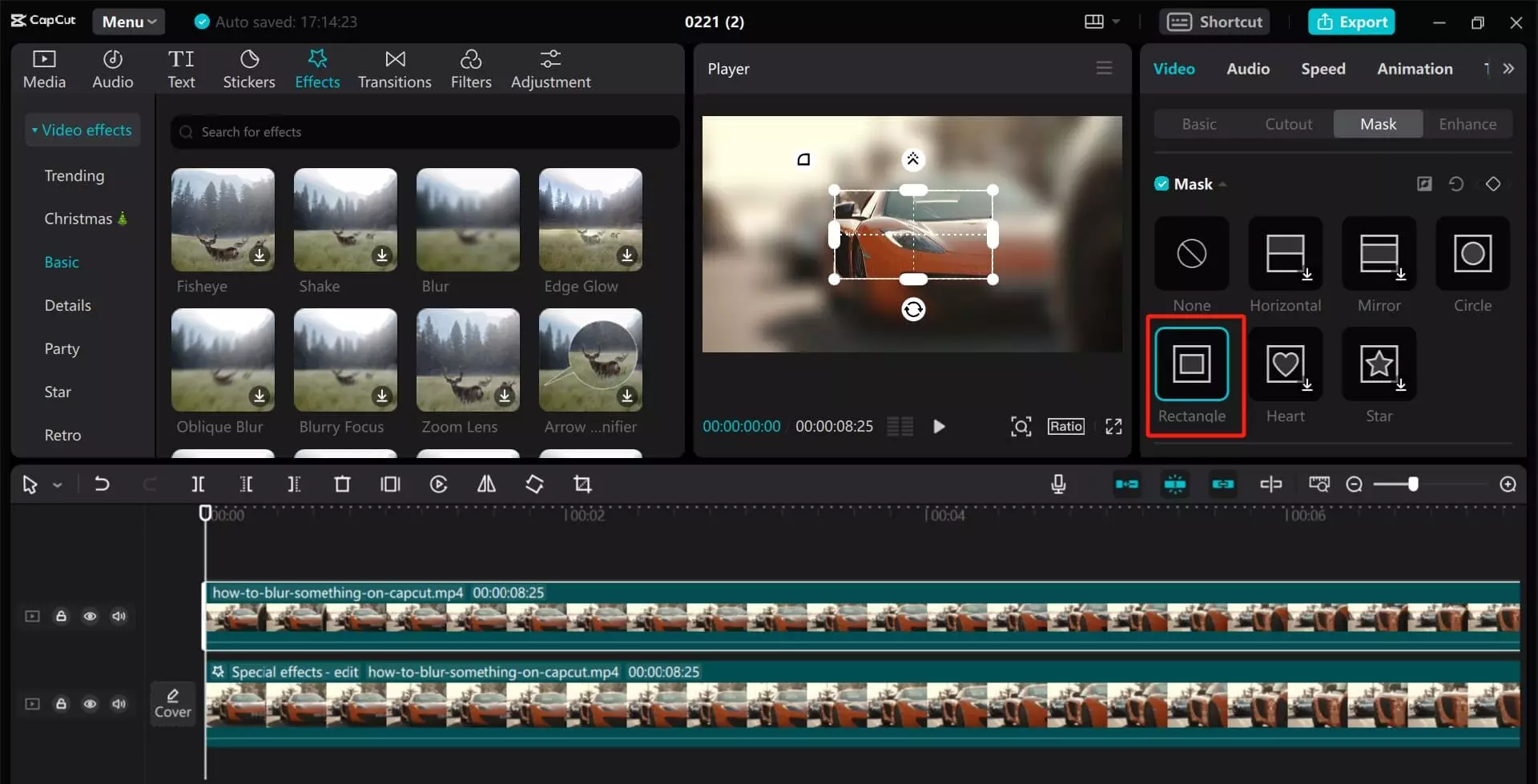
Start by downloading CapCut Desktop Editor from their official site and installing it on your Windows or Mac. Open the app and click on "New Project" from the welcome screen to start with a clean canvas for your tutorial. Import your materials by clicking "Import" located on the left panel towards the top, upload video clips, and drag-and-drop them to the timeline below.
Customize your video
Create narration by using the "Text" tab on the left, selecting "Text to Speech," typing the sentence "Let's dive into the basics," choosing the "Clear" voice for clarity, and clicking "Generate"-dragging the audible pronouncement to sync with your opening clip, rising over music volume, and previewing for a smooth start.
For better audio, select your narration track, then enter the upper menu under "Audio" and pick the "Voice Changer"-select an effect, "Authoritative" for credible sound- when you find it fits, apply it. If it is a bit pitched, lower it as much as you can, looking for a commanding presence. Complete your work with text overlays through the "Text" tab, adding labels such as "Step 1: Set Up" in a bold font with a slide-in animation. Use "Transitions" for seamless changes from one clip to another, for example, fade away to smoothen transitions.
Export your video
Previewing the video can be done through the Play Button that stretches across the timeline; a 4.5-minute mark is the range you will pace it. Then, at the upper right, click Export-choose 1080P with 60 fps for sharpness-good ahead, and save it to your device; it's ready to be shared on Udemy, YouTube, or your training portal.
Tips for Engaging Tutorial Videos with CapCut
Be Clear
When you start a video, make sure you clearly state the lesson’s goal or takeaway. Teach a skill or concept, but clarity matters to set expectations at the very outset. Make the presentation sharp and interesting by including CapCut's effects like "Focus" or "Highlight," so that the students know what they will be getting right at the onset.
Concentrated
Educational videos are best when tight and purposeful. They are kept at around 4-5 minutes long, focusing strictly on core points. Make effective use of the easy trimming and splitting-like feature of CapCut to eliminate wasted time, sharpen transitions, and keep a lively pace that will keep the viewer glued and ever keen to learn.
Highlight Step
Simply, in bold text, make a few labels such as "Key Tip," "Step One," or "Pro Tip"-then put them at the appropriate spots when you need them. Such visual anchors help break the complex knowledge into a fair amount at once, allowing easy follow-along learning and memory retention consideration for a step-by-step tutorial or how-to guide.
Test Flow
Before wrapping things up, watch your full video for confirmation that the lesson flows naturally and concepts build smoothly. CapCut's seamless timeline and editing features allow you to rearrange, speed up, or slow down clips whenever needed so that every transition feels logical and every explanation lands with clarity.
Conclusion
CapCut Desktop Editor is your teaching superpower in 2025. With tools like Text to Speech, AI-generated visuals, and Voice Changer, tutorial videos will inspire learners. Follow this guide to create engaging and teaching. Download CapCut today and start building your next course!