




- Who is Journalist in Digital Age? SC Raises Concern
- WhatsApp Storage Full? Free Up Space Without Deleting Chats
- YSRCP-TDP clashes in Punganur, several injured
- Two Killed in Suryapet after Bolero vehicle hits three people
- Welcome Starlink, but must follow law: Reliance responds to Elon Musk
- Govt raises petrol export duty to Rs 2.5 per litre, slashes for diesel
- Six-Car pile-up on PVNR expressway in Hyderabad, no casualties
- Delhi-NCR sees cooler October weather after rain; temp likely to remain mild
WhatsApp Storage Full? Free Up Space Without Deleting Chats
In Short
Clear large WhatsApp media files, reduce unnecessary downloads and reclaim valuable phone storage without deleting important conversations.

Share :
WhatsApp Storage Full? Free Up Space Without Deleting Chats
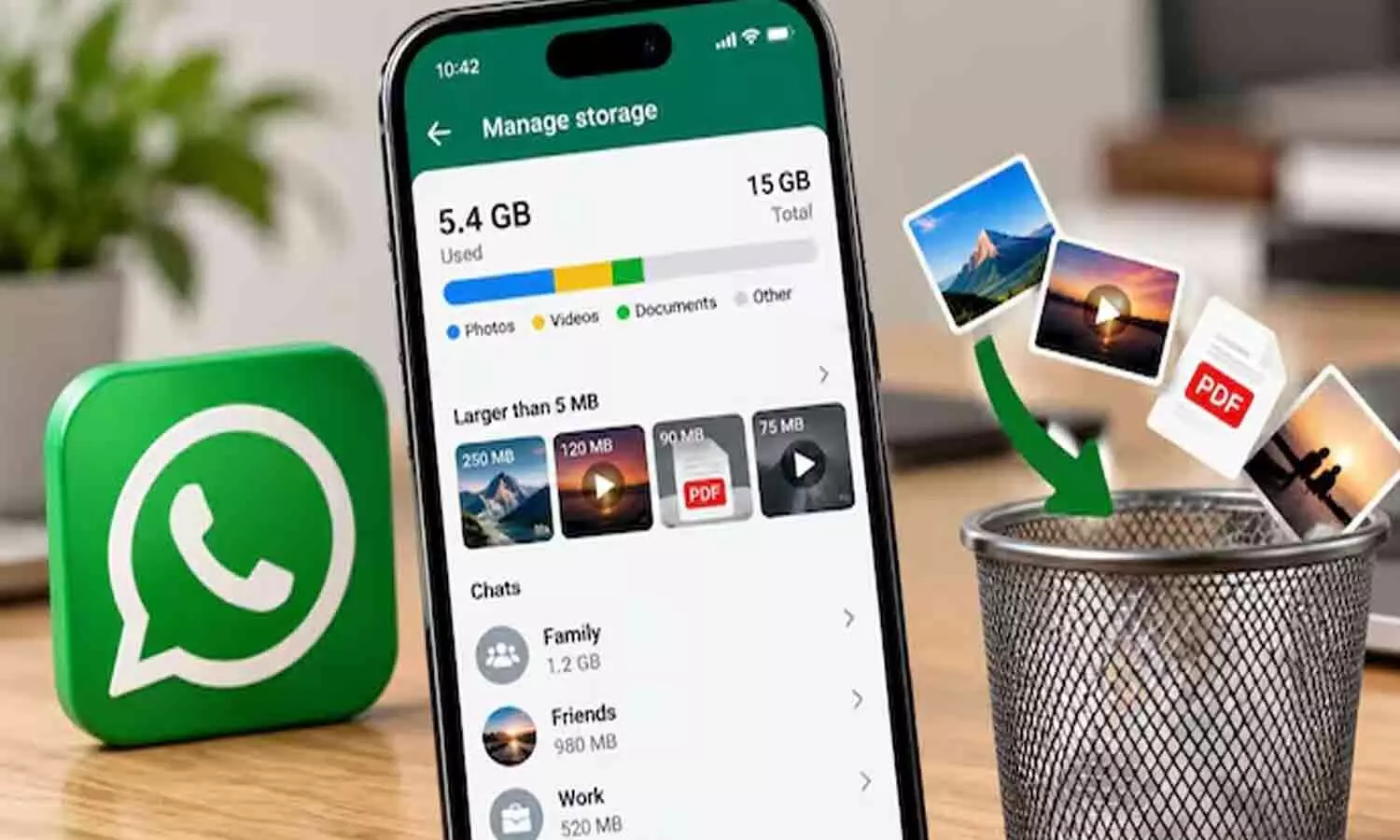
WhatsApp can easily eat up a phone’s storage, especially when you are part of several active groups. Over time, photos, videos, documents, forwarded content and duplicate files can build up without you noticing, taking up valuable space. But a full storage warning does not mean you need to delete your chats. WhatsApp has a built-in storage management feature that helps you identify large files and remove unwanted media. This allows you to clear space while keeping your important conversations and messages safe.
Find what is taking up WhatsApp storage
To check your WhatsApp storage usage, open the app and go to Settings > Storage and data > Manage storage. Here, WhatsApp shows how much space the app is using and provides a breakdown of media and conversations.
You can also look at how storage a specific conversation is using. Go into a chat or a group chat. Tap on the name of the chat. Choose Manage storage. Depending on the version of WhatsApp you have you might be able to arrange files by how big they're. This helps you find videos, big photos and big documents more easily.
Delete large files you no longer need
Once you are inside the Manage storage section look through the media files. Pick out anything you don't want to keep anymore. You can select photos, several videos or several documents and delete them all at once which takes less time than deleting files one by one.
Videos deserve attention because even a few long clips can use up hundreds of megabytes. Content that gets forwarded over and over, in groups can also take up a lot of space.
Before deleting anything, check that important documents, family photos or other personal files have been saved safe if you plan to keep them.
Keep your chats while clearing media
The biggest advantage of this method is that you can clear the media without removing your conversations. The method ensures your message history remains available while unnecessary photos, videos and documents are removed.
If the storage does not go down the way it should look in folders on your phone too. Some WhatsApp pictures or videos might have been saved in places, which means those copies could still be taking up space even after you delete them from the app.
Prevent WhatsApp from filling up again
After you have removed files, take steps to stop the same problem from happening again. I suggest you navigate to Settings, Storage and data then Media auto-download. Check which types of media WhatsApp automatically downloads, especially when you are using data.
Checking files regularly in busy group chats can also help, because large files can take up a lot of space. A few minutes of cleaning up every now and then can stop WhatsApp from using many gigabytes so WhatsApp will not fill up the device.
The main thing is to remove media that you don't need carefully or deleting whole chats. This way you can make space on your phone that is important while still having the WhatsApp messages and chats that are meaningful to you.

Tensions grips in Rayachoti amid YSRCP -TDP clashes, 15 cars destroyed
AP High Court Orders CBI Probe into Custodial Death Case
“If There’s Loss of Business, We Will Exercise Our Constitutional Powers: SC”
Connaught Place Turns into Fortress as Police Gear Up for ‘Lehra Do Tiranga’ Protest
Raksha Mantri Launches Blistering Attack on Rahul’s ‘Be Battle Ready’ Call
Special Parliament Session Likely in October-End; Delimitation, Women’s Bill on Agenda


