Discover the Strategy to Scan QR Codes on PC

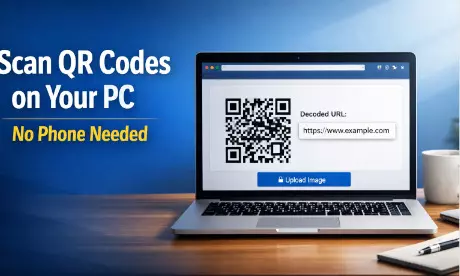
Learn how to scan QR codes directly on your laptop or desktop using browser-based tools like 2scan.net. This easy guide explains how to decode QR codes from images, screenshots, PDFs, and emails without switching devices.
Scanning of digital materials has become a very crucial aspect of our lives on the internet. We make logins, payment and obtain the information with it. Nevertheless, there is one issue that is likely to appear when the code is displayed on your computer screen. You may be curious about how to scan QR code on laptop without bringing your phone outside. The answer is to get an effective online tool such as 2scan.net, which will enable you to decode images in your storage. This tutorial will enable you to get proficient in the skills required to use QR codes on your laptop or desktop effectively.
You must have a means that is quick, no-charge, and does not need highly complicated software setups. You can process high-quality images that can meet your requirements immediately using a browser-based scanner. It should be easy to use and safe. One of the best ways to increase your digital workflow is to learn how to process these stagnant images. This guide can make you more productive and eliminate the headache of changing devices to read a mere link.
Identify Your Image Source
The first step is to find the QR code to scan. It could be in an email, a PDF file, or a webpage. When you discover the code, you will then be in a position to decipher the information that is concealed within the code. This code should be stored as an image file on your laptop or desktop. This is where the process of solving how to scan QR code from image on laptop devices starts. Also, you can use the following steps to prepare your file to be scanned.
- Make a screenshot of the QR code when on a website. On Windows, use the print screen button or command shift 4 on Mac.-
- Be sure to save the image in something less complex, such as JPG or PNG, G to make sure the scanner can read it easily.
- To improve accuracy, it is possible to crop the image to get rid of the clutter, leaving a square code.
- Make sure that the file is in your downloads or pictures folder so that at the time of uploading it can be located easily.
- Have a properly focused picture; good contrast between the black and white modules is crucial to do so.
- Change the file name to a simple one, such as qrcode.png,g to prevent cases of uploading of an incorrect image.
Simply, you should get your visual data in order. Being accurate and systematic will lead to becoming a successful scanner of QR codes, and these little preparation measures will make the online scanner flawless each time.
Plan Your Scanning Method
The main aspect is planning how to do it and selecting the appropriate tool, which will make you reach the link the fastest. This is the list of the strategic steps that will enable you to scan successfully on your computer.
- Select a Trusted Tool: Before starting over, select a good online scanner such as 2scan net. It is focused on this particular task and does not violate your privacy because it processes the images fast.
- Browse the Website: Use your browser of choice (Chrome, Firefox, or Edge) and go to the URL of the scanner. This will do away with the idea of downloading weighty software.
- Add the Picture: Find the upload button or camera icon. Choose the image file that you created in the previous step from your local storage.
- Instant Decoding: The tool will consider the pattern. It immediately decodes the dots on the screen and transports them into legible text or a site link.
- Check the result. Always read the unencrypted URL or text and then click. This is to make sure that you are going to the right destination.
- Copy or Visit: It is now possible to copy the text to your clipboard, or you can also click the link that will open it in a new tab. This finalizes the online experience.
- Troubleshoot When Necessary: In case of a scan failure, drag to turn the image or add brightness. The code is understandable sometimes, with one slight modification.
- Mark Crucial Data: In case there was a password or a ticket number on the QR code, save this information in a secure note application that could be referred to later.
- All you need to pursue these tactics and procedural measures is a drastic enhancement in your productivity in the process of learning how to scan a QR code on a laptop, eliminating the strain of having to apply physical cameras.
Focus on Image Quality
The quality of images is a basic winning formula in digital scanning, which you must pay attention to. High visual fidelity content is also a factor in the rapidity of the scan. The following are some of the measures to enhance the quality of your QR code images.
- Avoid Glare. In case you have captured a picture of a screen, do not leave any reflection concealing the data modules.
- High Resolution Attempt to receive the original file instead of a thumbnail. The increased pixel density assists the algorithm in reading the corners.
- Good Contrast Be sure that the code is black on white (or dark on light). Computers cannot read low-contrast codes.
- Constant Pictures. When scanning a photograph file, make sure that it is neither shaky nor blurred. Motion blur destroys the data integrity.
- Flat Perspective The picture ought to be flat. In case angled or distorted code is used, then straighten it using an image editor.
- Clean Margins Leaves a small amount of the white space (quiet zone) around the QR code. This serves to assist the scanner in locating the position of the code.
- Standard Formats: Use JPG, PNG, or GIF. The unfamiliar file types should be avoided and that could be hard to upload by web browsers.
With these strategies in mind, you will be able to make your files scan faster and create a professional workflow that makes your output more reliable and helps your success in desktop scanning.
Understand Security Risks (Safe Scanning)
Security is among the most critical aspects that should be understood to have a safe internet browsing experience. When using the right safety measures, you will be able to prevent your laptop from falling into the hands of the malicious links that could be hidden in a QR code. When you scan a code on your computer, you are opening a door to another site. In case a cybercriminal sends you a spo-fied QR code, scanning it may give a phishing site.
It is important to note the URL that is decoded. Scanning is not merely a technical activity, but a gate to information. You will remain safe by checking the domain name, using secure scanners, and not using less secure emails.
You can boost your security by having a preview of the link before clicking on the Go button. Checking the origin of the QR code helps to minimize the threat of malware and keep your personal information confidential, and create a secure online space. This is a critical point of digital literacy that must not be overlooked. Spending time checking links is the way to ensure sustainable security on the Internet.
This is to say, that safe computing cannot be insensitive to the need to verify the destinations of QR codes. Caution is one thing that you need to take seriously to access and keep your PC virus-free.
Interact with the Results
The aspect of dealing with the decoded information is the key to the effective usage of QR codes on a PC. As soon as the tool discloses the content, it is up to you to decide whether the scan will be valuable or not. Below are the strategies that can be used effectively to manage the outcomes upon learning how to scan QR code on laptop.
- Check the Connection: You should be on the URL verification. Check the spelling of the word and the end of the URL by looking for https so as to eliminate fake websites.
- Copy to Clipboard: Should the outcome be a text note or Wi-Fi password, promptly copy it and insert where it is required.
- Open in New Tab: Open the link in a new browser window so as to keep your scanner webpage open just in case you might need to recheck the code.
- Download Files: In case the QR code directs to a PDF menu or a file that needs to be downloaded, make sure your antivirus is functional by the time the download begins.
- Share the Link:Sometimes you scan a code to share the link with another person. Share the URL in your chat message or email.
- Save Contact Info: In the event that the QR code is a vCard (digital business card), it is possible to download the.vcf file and add it to the email address book.
With these strategies and communicating with your outcomes, the utility of the code can become the maximum and the digital working process can be smooth.
Compare: Laptop vs. Mobile Scanning
In the technological world, it helps you to know that there is a difference between scanning a laptop and a mobile phone in order to make the best choice at the right moment. Although mobile phones are the conventional option, laptops have their own advantages in file based scanning. This is where you can find a comparison to understand the reason as to why you should know how to scan QR code on a laptop.
Feature | Laptop / PC Scanning | Mobile Phone Scanning |
Input Source | Files (JPG, PNG) & Screenshots | Camera Live Feed |
Convenience | High (for emailed codes) | Low (requires 2nd screen) |
Precision | Digital precision (no shaking) | Depends on hand steadiness |
Workflow | Stays on one device | Disrupts workflow (switch devices) |
Result Handling | Easy copy/paste to document | Hard to transfer to PC |
Overall, the utilization of a laptop scanner is a tactical benefit in the event the code is already digital. It spares you the embarrassment of holding a phone at a computer monitor. With the help of such services as 2scan.net, you will fill this gap between image files and actual links and improve your productivity significantly.
Continue Learning and Adapting
It is also necessary to keep learning and adapting to how to scan a QR code on a laptop. Technology is dynamic, and new forms of QR codes are introduced on a regular basis. In keeping up with the times, you may be informed about emerging image formats, quicker browser extensions and enhanced security measures.
Be Patient with Technology
Technical troubleshooting is a success with patience and persistence. A scan could fail initially in an online space whose files and image sizes come in various types and sizes. This does not imply that the tool is defective; one needs to wait to correct the image and use the second attempt.
- Patience in cropping.
- Persistence in saving files.
- Dedication to quality.
- Overcoming blur issues.
- Trusting the process.
- Analyzing the error.
- Trying a different browser.
Keep in mind one more important thing: bingo success in scanning is the product of clarity and accurate input. If it fails, do not give up. Check your image file, make the code full, and submit once again. The actual success is to know how to troubleshoot. I would recommend that you maintain a clean and well-organized set of files.
Therefore, there is no need to be afraid of trying one more time in case of failure. Always keep in mind that the most important thing to do is not to give up but to strive to get a successful outcome and to find the information you need on your computer.
Conclusion
To sum up, it is possible to note that mastering approaches to scanning QR code on laptops involves a minimum of balance between preparation and necessary tools. You should be prepared to take screenshots and clean your files. It is also something that you should learn that online tools are the creation that bridges the gap between a dead image and a live link.
Also, you are expected to practice safe browsing by ensuring that you decode all links. With the combination of these measures through the usage of such websites as 2scan.net, image quality assessment, and safety check, users can comfortably handle QR codes on their computers. This creates a smooth transition between the mobile-first world of QR codes and the productivity of the desktop world.