How to Open APK Files: Install & Run on Android & PC

What Is an APK File?
Definition and Purpose of APK Files
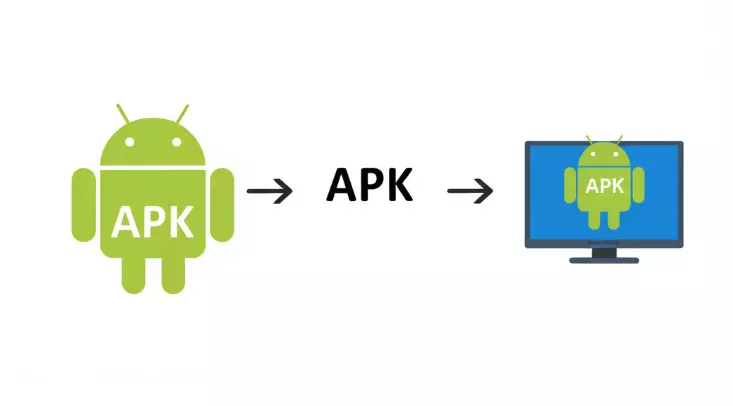
An APK (Android Package File) is the file format used by the Android operating system for the distribution and installation of mobile apps. Think of it like an .exe file for Windows or a .dmg file for Mac. It contains all the necessary elements for an app to install and run correctly on an Android device, including the code, resources (like images and sounds), assets, and manifest file. Essentially, it's a package holding everything an application needs.
Benefits of Using APK Files Over Play Store Downloads
While the Google Play Store is the primary source for Android apps, using APK files offers unique advantages. Users can access geo-restricted apps, get updates faster than the official rollout, install older versions if a new update causes issues, or try apps from independent developers not listed on the Play Store. This flexibility gives users more control over their app installations, but it also requires understanding the process and potential risks involved.
Preparing to Install APK Files on Android
Before you can install an app using its APK file, you need to adjust a security setting on your Android device. By default, Android blocks installations from sources other than the Google Play Store to protect against potentially harmful software.
Enabling "Install Unknown Apps" on Modern Android Versions
On newer Android versions (Android 8 Oreo and later), permission to install unknown apps is granted on a per-app basis. Here’s how to enable it:
Go to your device Settings.
Navigate to Apps & notifications (or Apps).
Find and tap on the app you'll use to download or open the APK file (e.g., your web browser like Chrome, or your file manager).
Scroll down and select Install unknown apps.
Toggle the switch to Allow from this source.
For older Android versions, you typically find this option under Settings > Security labelled as Unknown sources. Enable it, but remember to disable it after installation if you don't frequently install APKs this way.
Adjusting Security Settings for Safe APK Installation
Enabling installation from unknown sources carries risks. Ensure you only download APK files from reputable places. Consider installing a reliable mobile security app and scanning any downloaded APK file before proceeding with the installation. Being cautious helps prevent malware or unwanted software from compromising your device.
Step-by-Step Guide to Install APK Files on Android
Once your device is prepared, the installation process is straightforward.
Downloading APKs Safely from Trusted Sources
The most critical step is finding a safe source. Avoid random websites offering popular apps for free, as these often contain malware. Look for well-known, trusted repositories or the developer's official website. Sources like APKMirror are generally considered reliable as they verify the cryptographic signatures of new APKs against previous versions. Ensure your chosen source has a good reputation before initiating any apk download.
Locating the APK File in File Manager or Downloads
After downloading, the APK file will usually be saved in your device's 'Downloads' folder. You can access this folder using a file manager app (many devices have one pre-installed, or you can download one like Files by Google). Navigate to the Downloads folder or wherever you saved the file.
Installing the APK: Permissions, Prompts, and Finalizing Setup
Tap on the APK file. If you correctly enabled unknown sources for the app you're using (file manager or browser), the installation prompt will appear.
The system will show you the permissions the app requires. Review them carefully.
Tap Install.
Wait for the installation process to complete.
Once finished, you'll see an "App installed" message. You can tap Open to launch the app immediately or Done to open it later from your app drawer.
How to Open APK Files on PC Using an Android Emulator
Want to run Android apps on your Windows PC or Mac? An Android emulator is the easiest way. Emulators create a virtual Android device on your computer.
Top Android Emulators for PC (BlueStacks, NoxPlayer)
Several reliable emulators are available. BlueStacks and NoxPlayer are popular choices known for their ease of use, compatibility, and performance. Both are free and support a wide range of apps and games. Choose one that suits your system specifications and needs.
Installing BlueStacks: Setup and Configuration
Download the BlueStacks installer from its official website.
Run the installer and follow the on-screen instructions.
Once installed, launch BlueStacks. You may need to sign in with your Google account to access the Play Store within the emulator (optional for just running APKs).
Importing and Installing APK Files in the Emulator
Most emulators allow easy APK installation:
Drag and Drop: Simply drag the APK file from your computer folder and drop it onto the emulator window.
Install APK Button: Look for an "Install APK" button or similar option within the emulator's interface. Click it and browse to the location of your APK file to install it. The app will then appear in the emulator's app drawer, ready to launch.
Security Best Practices for APK Files
Safety is paramount when dealing with APKs from outside the official store.
Verifying APK Authenticity with VirusTotal or Checksums
Before installing, consider uploading the APK file to VirusTotal.com. This service scans the file with multiple antivirus engines. You can also compare the file's checksum (MD5 or SHA) if provided by the source, ensuring the file hasn't been tampered with since its release.
Avoiding Malware: Red Flags in Third-Party APKs
Be wary of APKs asking for excessive permissions unrelated to their function (e.g., a simple game asking for contact access). Avoid sources that look unprofessional or use aggressive advertising. If an offer seems too good to be true (like a paid app offered free), it likely carries risks. Stick to well-vetted platforms when seeking specific apps, such as curated collections for APK Games Download.
Key Takeaways for Safe APK Usage
Summary of Android and PC Installation Steps
Android: Enable "Install unknown apps," download APKs from trusted sources, locate the file, tap to install, and review permissions.
PC: Install an Android emulator (like BlueStacks), then drag-and-drop the APK onto the emulator window or use its install function.
Pro Tips for Maintaining Device Security
Only download from reputable sources.
Scan APKs with security software before installation.
Review app permissions carefully.
Keep your Android OS and security apps updated.
Disable "Install unknown apps" for apps you don't regularly use for installations.
FAQs About Opening APK Files
Can APK Files Damage My Device?
Yes, if they contain malware. APK files themselves are just packages, but malicious code can be hidden inside. Only install APKs from sources you trust implicitly.
How to Extract APKs from Installed Apps on Android?
You can use specific apps called "APK extractors" available on the Play Store. These apps allow you to save the APK file of an already installed application to your device storage.
Are APK Updates Automatic?
No. Apps installed via APK files typically do not update automatically through the Google Play Store. You'll need to manually download and install newer versions of the APK when they become available from your source.