How to Roll Back from iOS 26 to iOS 18.6.2: A Step-by-Step Guide for iPhone Users

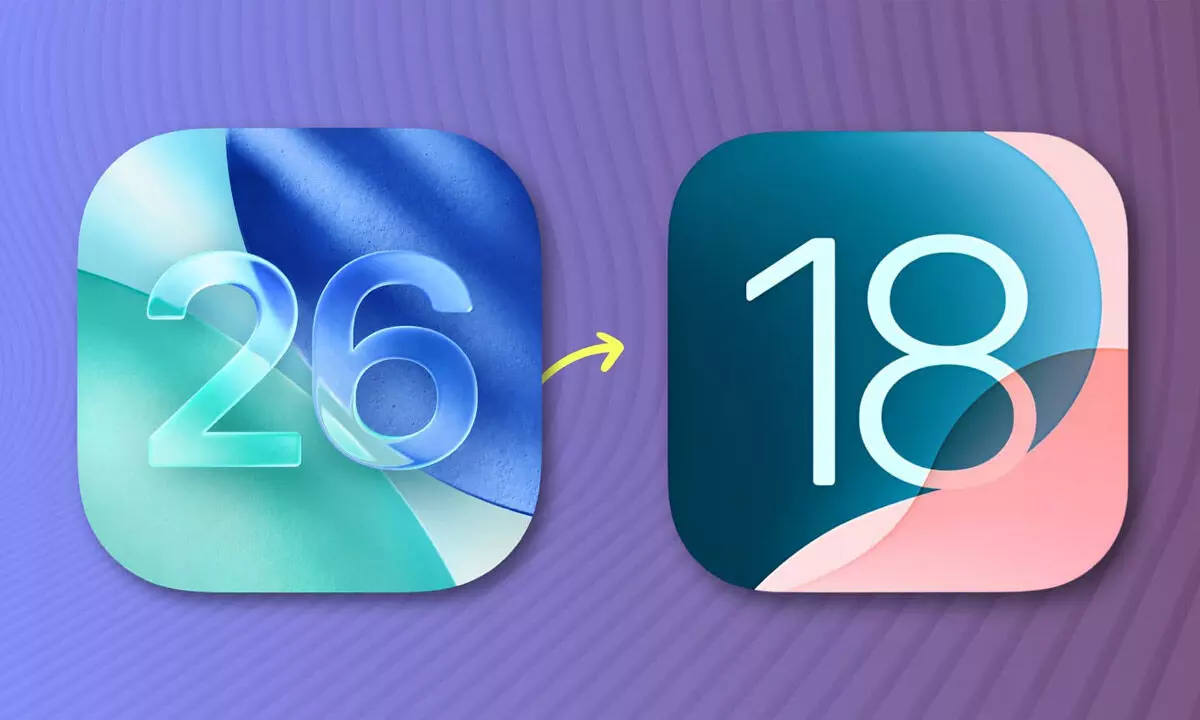
Many iPhone users facing lags on iOS 26 can still roll back to iOS 18.6.2 with careful steps.
Apple’s latest operating system, iOS 26, introduced the much-hyped Liquid Glass interface, marking a major visual shift for iPhone users. While the design overhaul grabbed attention, the update has also triggered complaints of lags, glitches, overheating, and faster battery drain. As is often the case with early builds, the software appears to need refinements, leaving many users frustrated.
The good news is that Apple is still signing iOS 18.6.2, which means dissatisfied users have the option to roll back to this earlier, stable version. However, downgrading is not as straightforward as hitting a button—it is a technical process with risks. Importantly, the procedure wipes all existing data from the iPhone, making backups essential.
A report from WCCFtech highlights that this process “should only be attempted with care,” advising users to back up important files such as photos, notes, and recordings before starting.
How to Safely Downgrade from iOS 26 to iOS 18.6.2
- Back up your iPhoneBegin by securing your data. Use iCloud, Finder on a Mac, or iTunes on Windows to create backups. Experts recommend making multiple backups for added safety.
- Disable Find My iPhoneNavigate to Settings and turn off Find My iPhone. Users also need to sign out of their Apple ID to prevent activation lock complications later.
- Download the correct IPSW fileVisit Apple’s official site or trusted sources like IPSW.me to download the iOS 18.6.2 firmware for your specific iPhone model. Ensure the version is still being signed by Apple—this is critical.
- Connect your iPhone to a computerUse a Lightning or USB-C cable to link your device. Finder (Mac) or iTunes (Windows) should detect it before moving ahead.
- Enter DFU modeQuickly press and release Volume Up, then Volume Down. Hold the Side button until the screen goes black. Next, press and hold Volume Down for five seconds while still holding the Side button. Release the Side button but continue pressing Volume Down until Finder detects the device.
- Start restorationOn Mac, open Finder, hold the Option key, select Restore iPhone, and choose the downloaded iOS 18.6.2 file. On Windows, launch iTunes, hold Shift, click Restore, and select the same file.
- Wait for the process to completeThe iPhone will restart multiple times as the downgrade installs.
- Restore or set up freshOnce installation is done, users can either restore from their backup or set up the device as new.
Apple’s Response
Apple maintains that updates are necessary for security, stability, and new features. The company notes that temporary issues such as overheating or reduced battery life are often caused by background processes like re-indexing and app updates following a major software release.
For those struggling with persistent iOS 26 glitches, however, reverting to iOS 18.6.2 offers a temporary solution until Apple rolls out a more polished update. That said, the downgrade process is best suited for users comfortable with technical steps.